搭建github个人博客


前言:电脑系统为window 10专业版,64位
相关步骤:
1、安装Node.js和配置好Node.js环境,打开cmd命令行,成功界面如下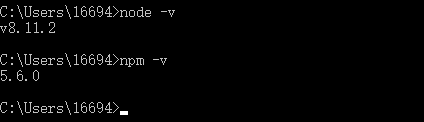
2、安装Git和配置好Git环境,安装成功的象征就是在电脑上任何位置鼠标右键能够出现如下两个选择

注意:一般出于安全考虑,只有在Git Bash Here中才能进行Git的相关操作。如果需要在cmd命令行里调用Git,那么就要配置电脑的环境变量Path,或者在安装的时候选择use Git from the Windows Command Prompt。这个可有可无,影响不大,成功配置的界面如图
3、Github账户注册和新建项目,项目必须要遵守格式:账户名.github.io,不然接下来会有很多麻烦。并且需要勾选Initialize this repository with a README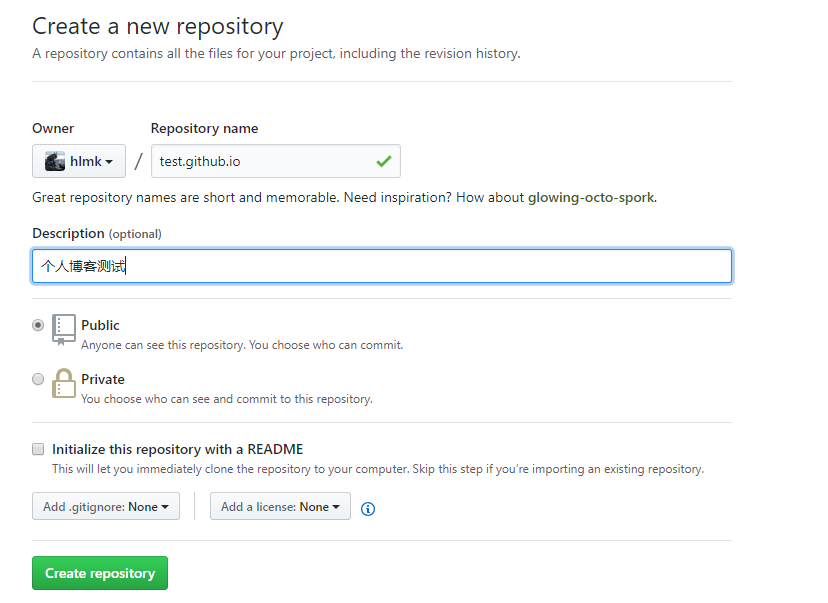
在建好的项目右侧有个settings按钮,点击它,向下拉到GitHub Pages,你会看到那边有个网址,访问它,你将会惊奇的发现该项目已经被部署到网络上,能够通过外网来访问它。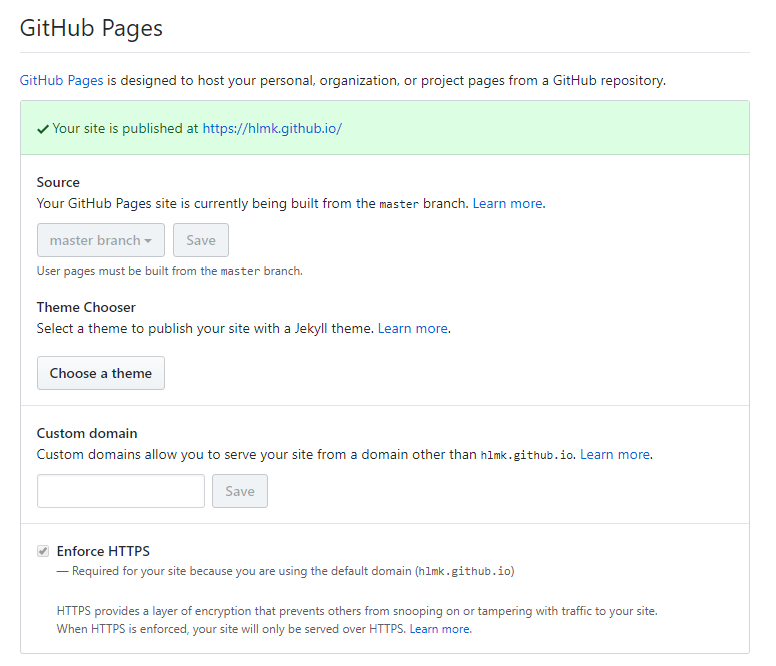
因我之前已经建好了,所以上一步只能用test名字代替测试,下面的都正常用hlmk
4、安装Hexo,在自己认为合适的地方创个文件夹,我是在D盘建了一个blog文件夹。然后通过命令行进入到该文件夹里面
输入npm install hexo -g,开始安装Hexo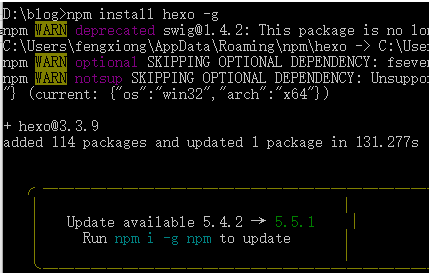
输入hexo -v,检查hexo是否安装成功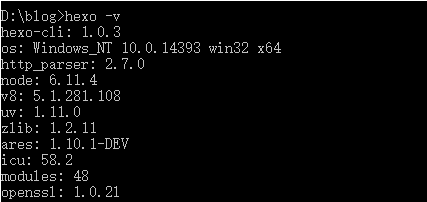
输入hexo init,初始化该文件夹(有点漫长的等待。。。)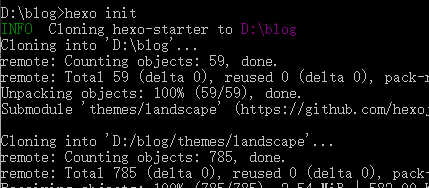
分割线–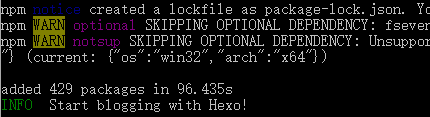
看到后面的“Start blogging with Hexo!”,激动有木有!!!!!
输入npm install,安装所需要的组件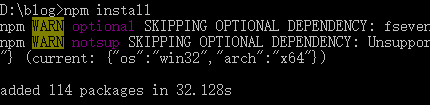
输入hexo g,首次体验Hexo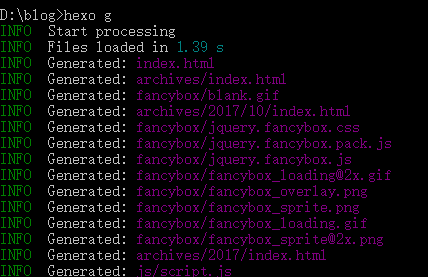
输入hexo s,开启服务器,访问该网址,正式体验Hexo
问题:假如页面一直无法跳转,那么可能端口被占用了。此时我们ctrl+c停止服务器,接着输入“hexo server -p 端口号”来改变端口号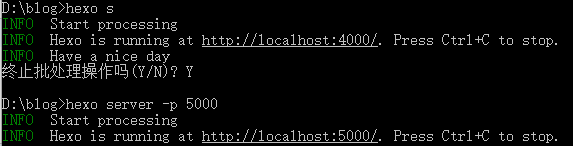
那么出现如下图就成功了
5、将Hexo与Github page联系起来,设置Git的user name和email(如果是第一次的话)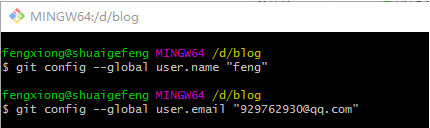
上图是在其文件夹里面鼠标右键,点击Git Base Here。这里“feng”可以替换成自己的用户名,邮箱可以替换成自己的邮箱
输入cd ~/.ssh,检查是否由.ssh的文件夹
输入ls,列出该文件下的内容。下图说明存在
输入ssh-keygen -t rsa -C “929762930@qq.com”,连续三个回车,生成密钥,最后得到了两个文件:id_rsa和id_rsa.pub(默认存储路径是:C:\Users\Administrator.ssh)。
输入eval “$(ssh-agent -s)”,添加密钥到ssh-agent
再输入ssh-add ~/.ssh/id_rsa,添加生成的SSH key到ssh-agent
登录Github,点击头像下的settings,添加ssh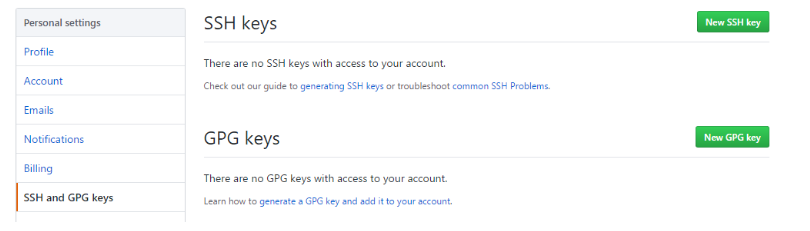
新建一个new ssh key,将id_rsa.pub文件里的内容复制上去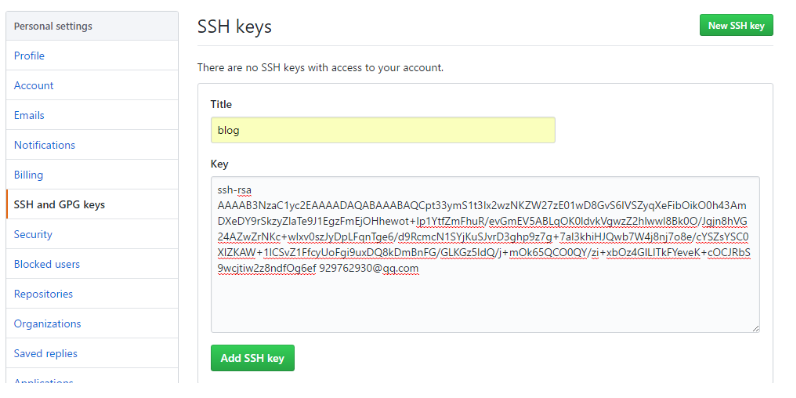
输入ssh -T git@github.com,测试添加ssh是否成功。如果看到Hi后面是你的用户名,就说明成功了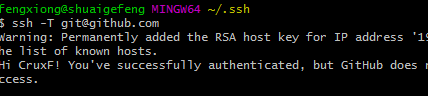
问题:假如ssh-key配置失败,那么只要以下步骤就能完全解决
首先,清除所有的key-pair
ssh-add -D
rm -r ~/.ssh
删除你在github中的public-key
重新生成ssh密钥对
ssh-keygen -t rsa -C “xxx@xxx.com“
接下来正常操作
在github上添加公钥public-key:
1、首先在你的终端运行 xclip -sel c ~/.ssh/id_rsa.pub将公钥内容复制到剪切板
2、在github上添加公钥时,直接复制即可
3、保存
测试:
在终端 ssh -T git@github.com
6、配置Deployment,在其文件夹中,找到_config.yml文件,修改repo值(在末尾)
repo值是你在github项目里的ssh(右下角)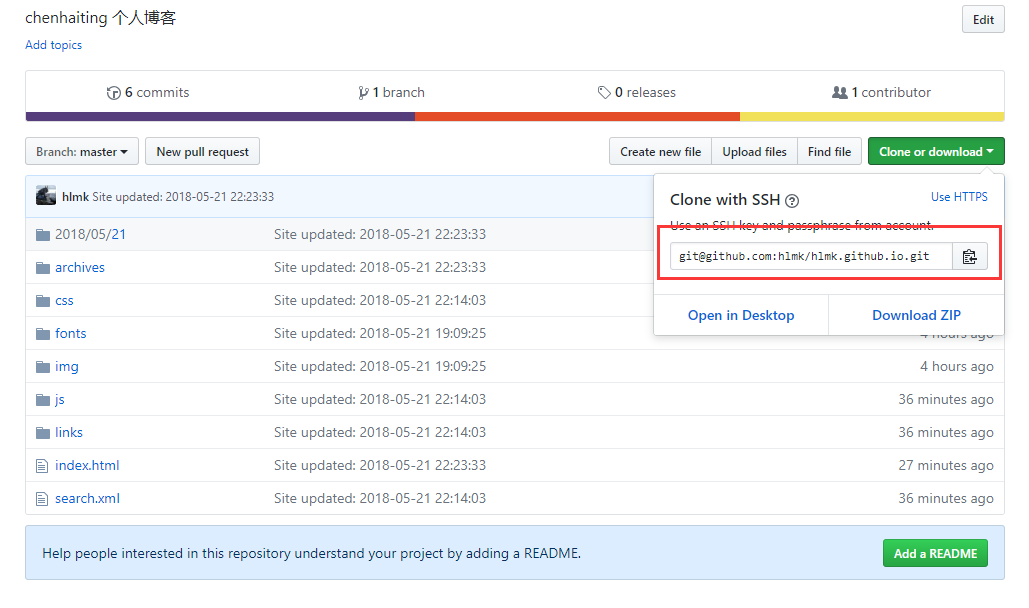
7、新建一篇博客,在cmd执行命令:hexo new post “博客名”
这时候在文件夹_posts目录下将会看到已经创建的文件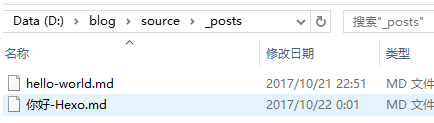
在生成以及部署文章之前,需要安装一个扩展:npm install hexo-deployer-git –save
使用编辑器编好文章,那么就可以使用命令:hexo d -g,生成以及部署了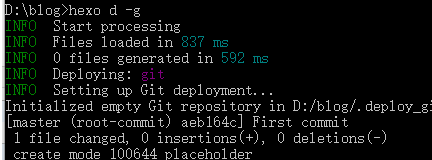
部署成功后访问你的地址:http://用户名.github.io。那么将看到生成的文章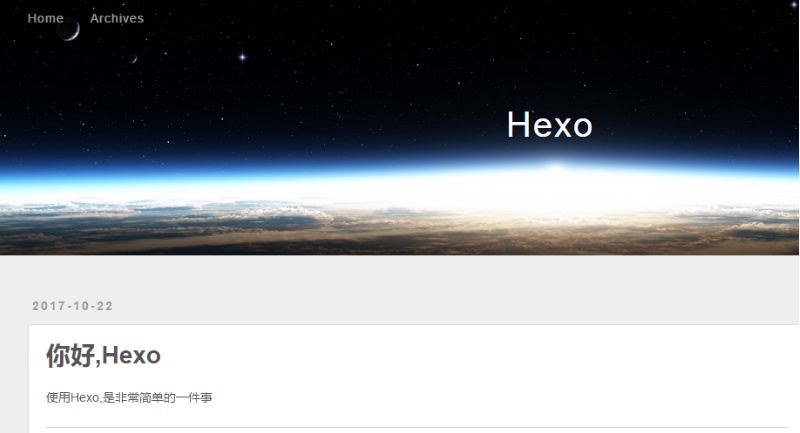
好了,到此为止,基本的hexo完成,下满就是选择自己满意的插件整合进去
我选用的插件地址是:https://material.viosey.com/
1.进入github页面下载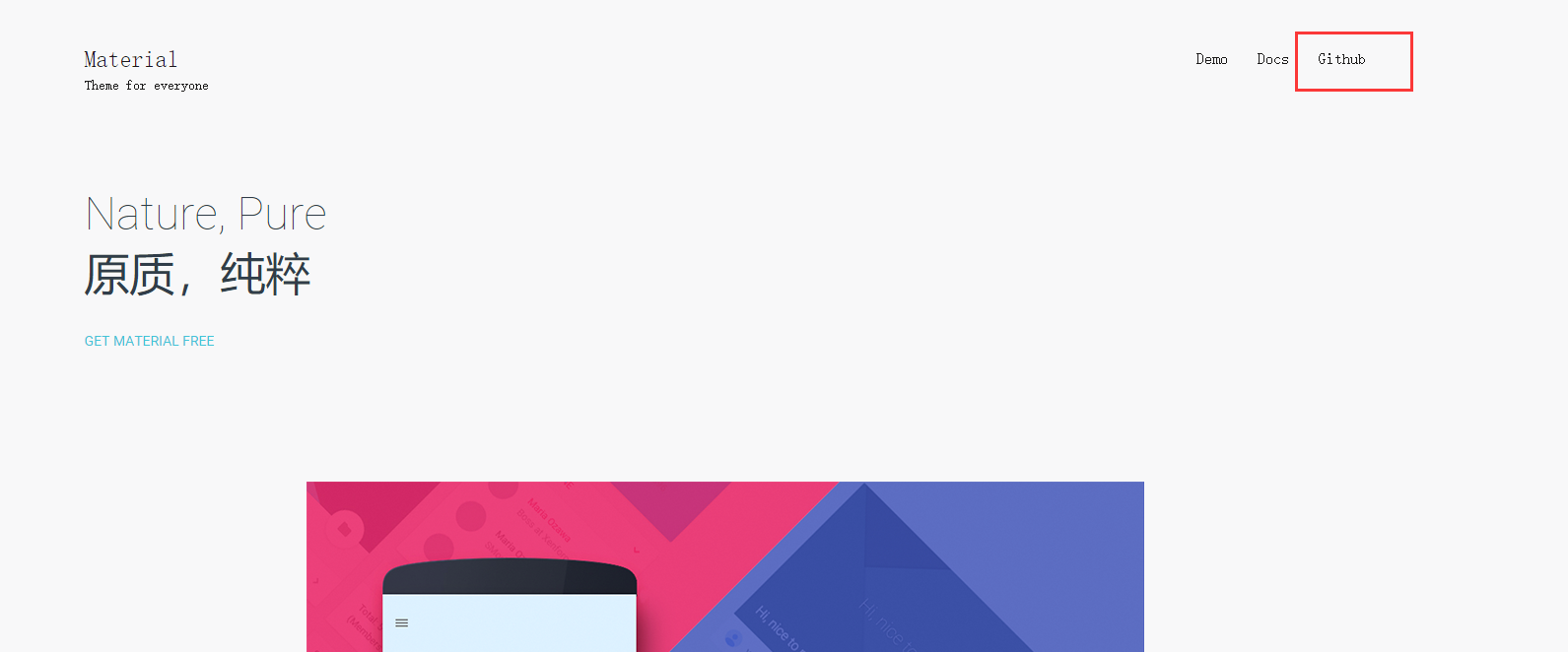
下载zip文件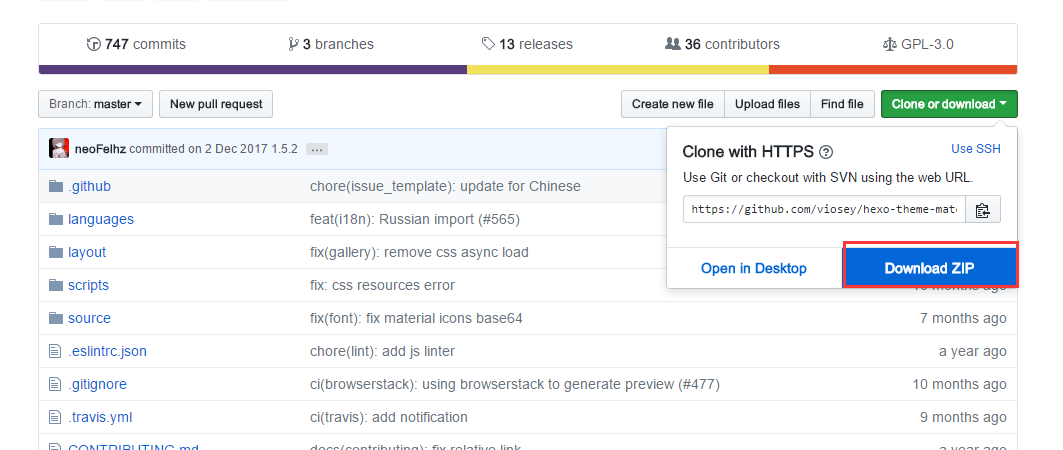
参考文档安装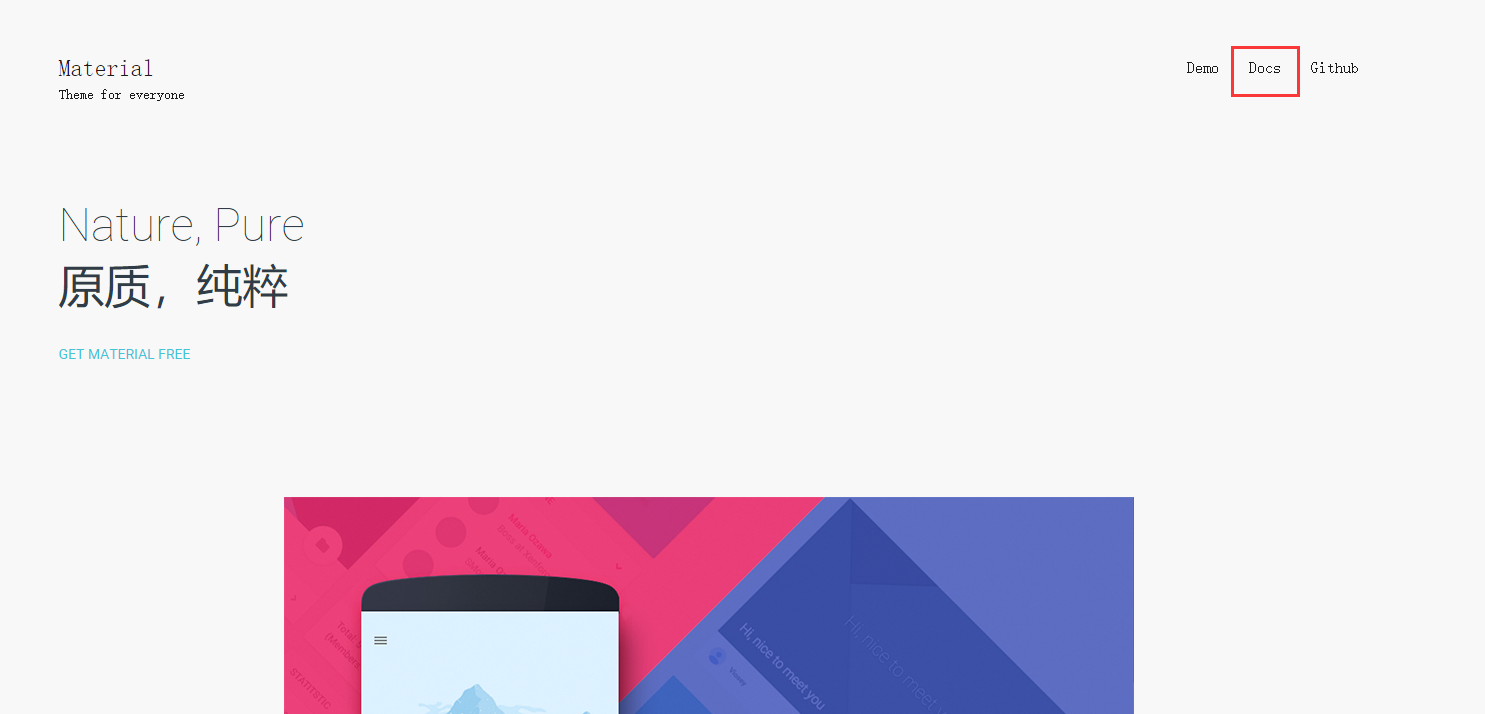
2.将下载下来的文件按照文档说明,解压到themes目录,并且将问价夹改名为material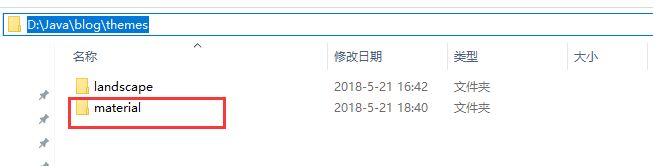
3.将_config.yml文件内的theme:改为material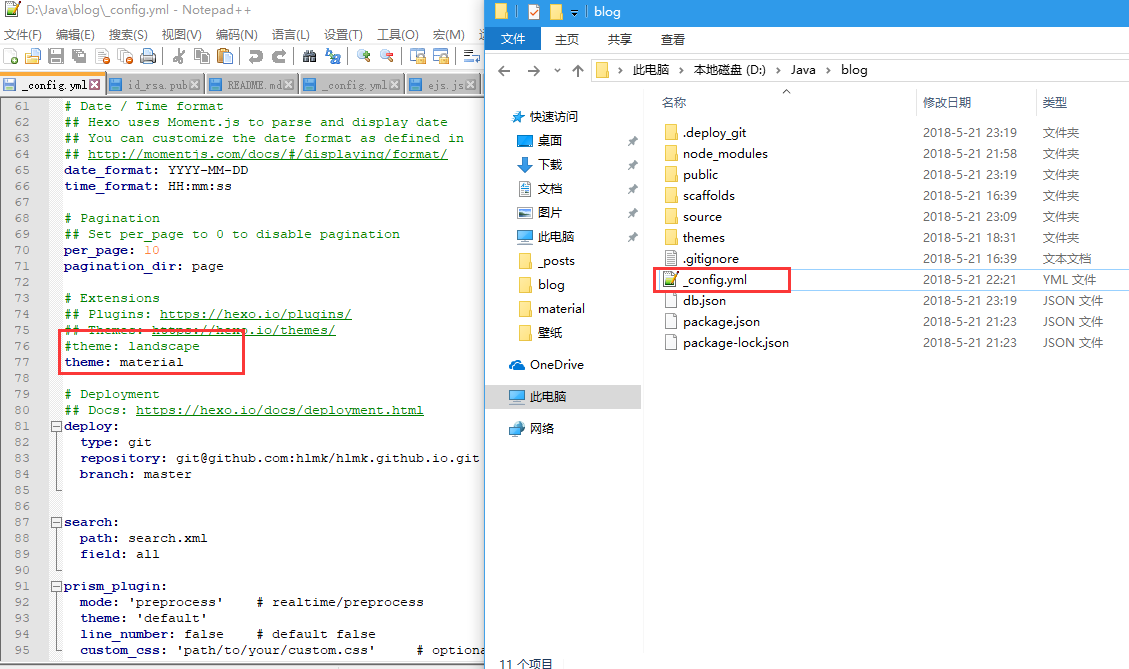
4.将解压文件内的_config.template.yml复制一份并改名为_config.yml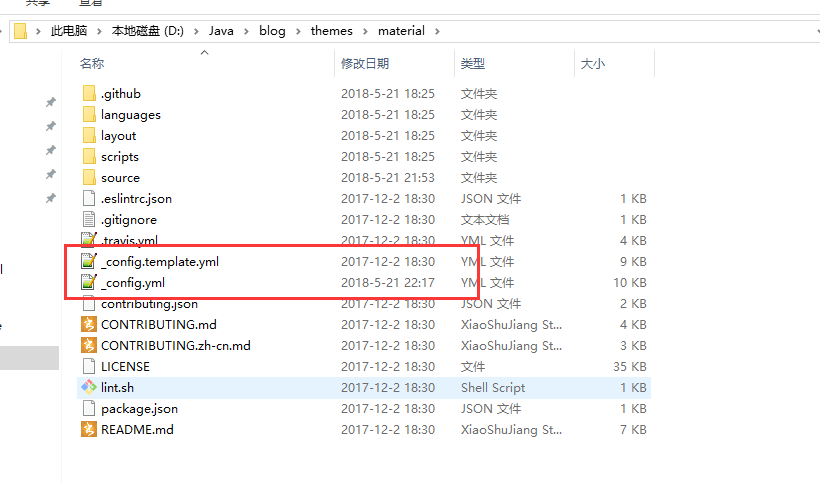
5.启动hexo
6.本地页面访问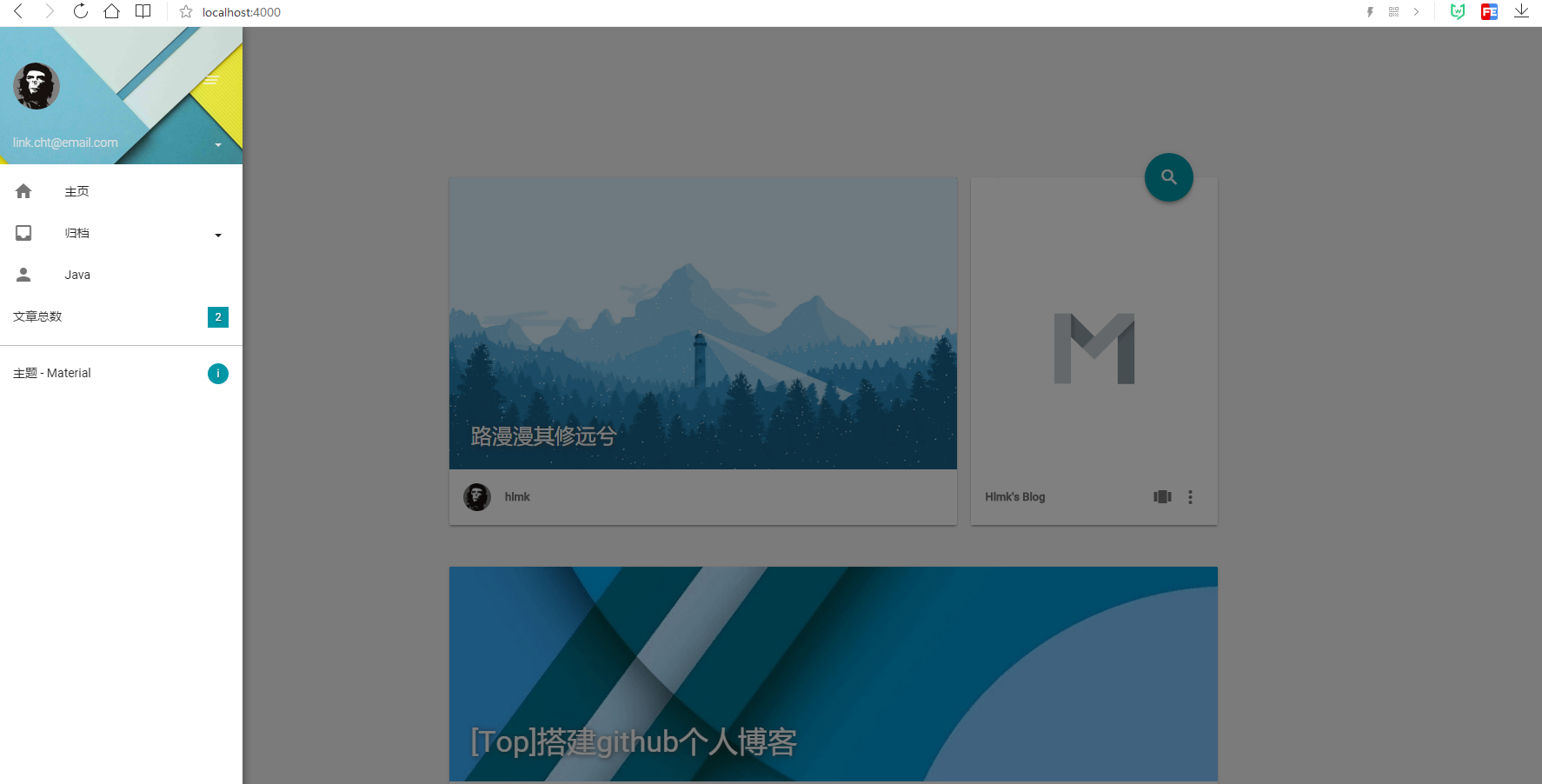
7.发布到github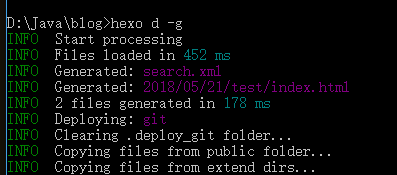
8.github访问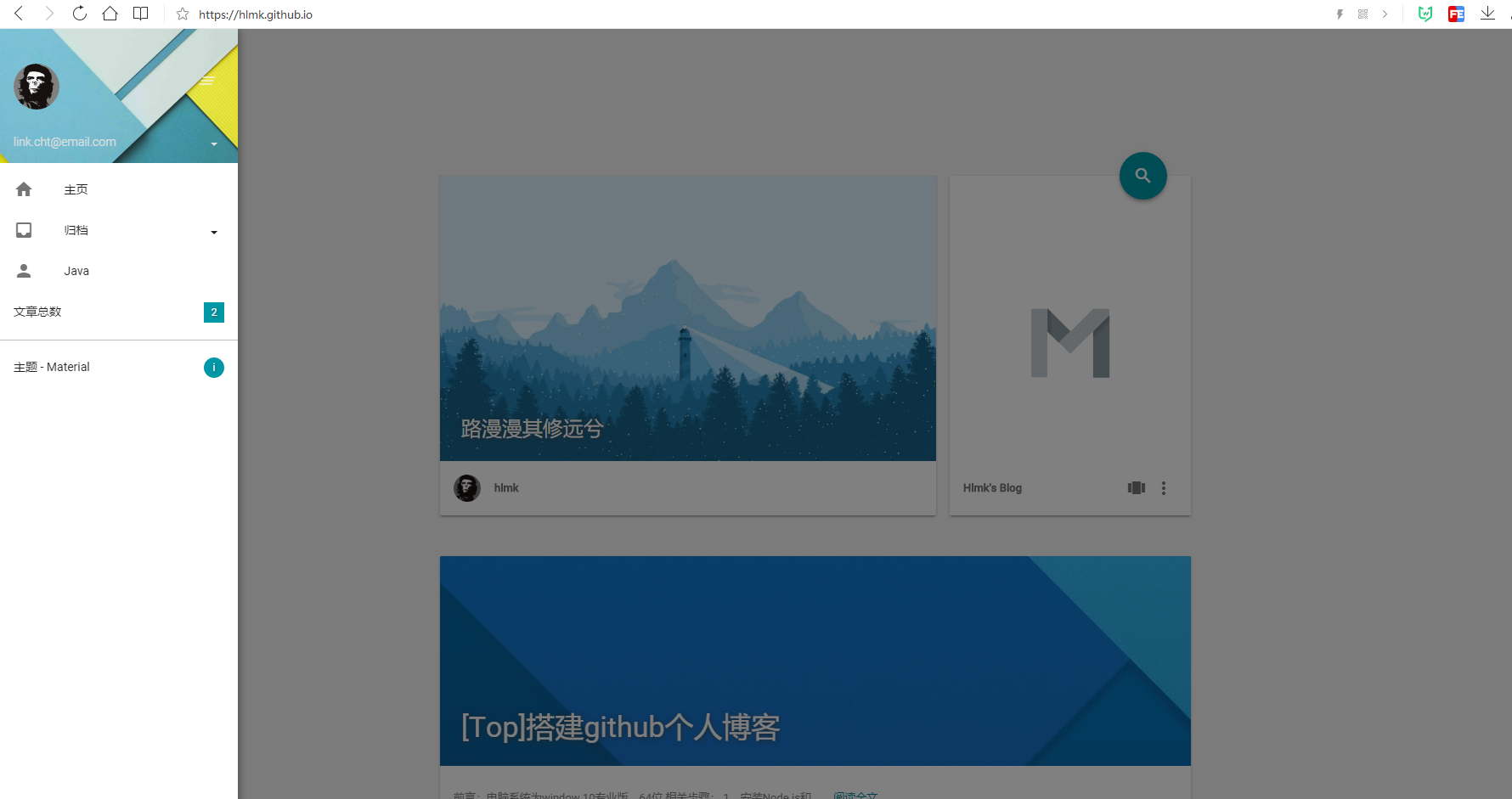
9.其他一些具体参数和发布文章,参考文档:https://material.viosey.com/docs/#/start